Custom shortcut menus
2018-06-27 Commandbars 0 16
Using custom shortcut menus can be a very user-friendly way of letting the user add information to input-cells in a worksheet.
Custom shortcut-menus can also be an alternative to creating dependent drop-downs, e.g. letting the user select a country and then in the next column limit the items in the drop-down to cities in the previously selected country.
Creating such dependent drop-downs can be a time-consuming task, custom shortcut-menus can be an easier alternative, preferably when you don't have a lot of items to choose from.
Here are a few examples showing how a custom shortcut menu can be used to replace in-cell dependent drop-downs:
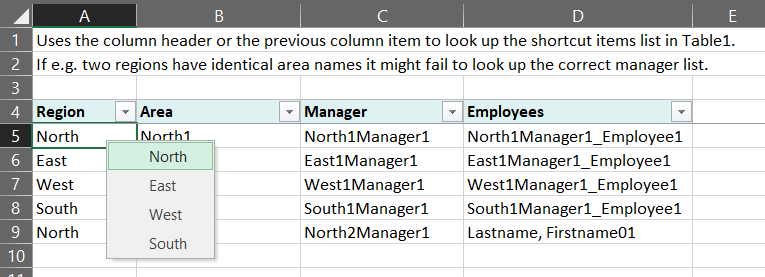
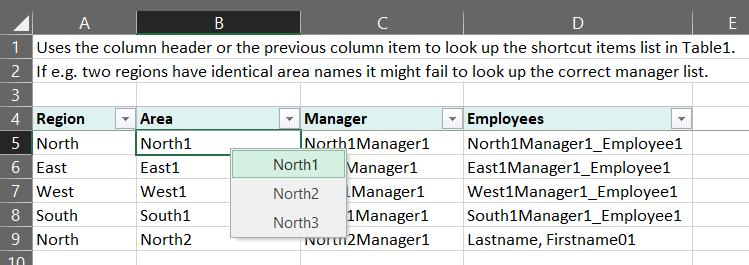
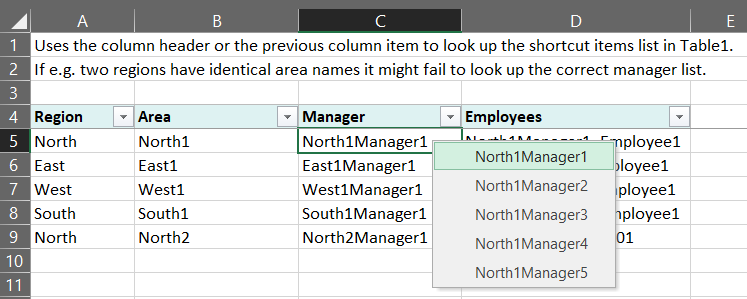
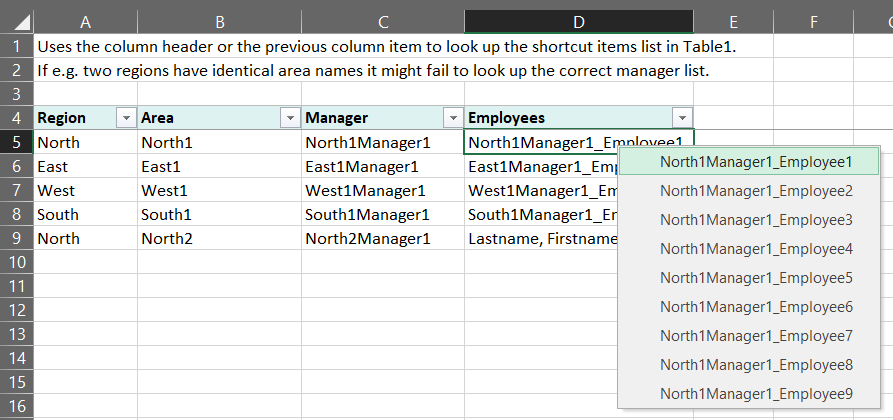
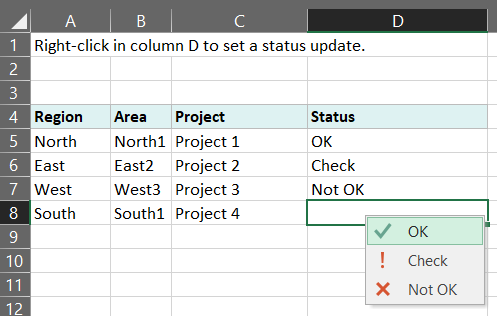
Below is the main code used for presenting the custom shortcut-menus shown in the pictures above:
' add this the the worksheet's code module:
Private Sub Worksheet_BeforeRightClick(ByVal Target As Range, Cancel As Boolean)
' updated 2018-06-27 by OPE
    ShortCutMenu_SelectStatus Target, Cancel
End Sub


' add the rest to any normal code module:
Sub ShortCutMenu_SelectStatus(objInputCell As Range, Optional Cancel As Boolean = False)
' updated 2018-06-27 by OPE
' displays a shortcut menu with some status options to put into the active cell
' call this procedure from a Worksheet_BeforeRightClick event procedure: ShortCutMenu_SelectStatus Target, Cancel
Dim r As Long, c As Long, varItems As Variant
    If objInputCell Is Nothing Then Exit Sub

    ' check if the range is a single cell
    With objInputCell
        If .Areas.Count > 1 Then Exit Sub
        If .Rows.Count > 1 Then Exit Sub
        If .Columns.Count > 1 Then Exit Sub
        r = .Row
        c = .Column
    End With

    ' check if the range is within the desired worksheet area
    If r <= 3 Or c <> 4 Then Exit Sub

    Cancel = True ' return true to prevent the built in shortcut menu to be displayed
    varItems = Split("1087;OK;1074;Check;1088;Not OK", ";")
    ShortCutMenu_SelectItemShow varItems, Cancel, True ' display the shortcut menu
End Sub

Sub ShortCutMenu_SelectItemShow(varItems As Variant, Optional Cancel As Boolean = False, Optional blnHasFaceID As Boolean = False)
' updated 2018-06-23 by OPE
' varItems: if blnHasFaceID = False then this must be an array with item texts like "OK;Check;Not OK"
' varItems: if blnHasFaceID = True then this must be an array with item pairs with icon number and text like "1087;OK;1074;Check;1088;Not OK"
Const cstrPopUpName As String = "Temp_SelectItems"
Dim cb As CommandBar, i As Long, j As Long, strTemp As String, blnIsArray As Boolean
    On Error Resume Next
    Application.CommandBars(cstrPopUpName).Delete ' delete any existing popup list
    On Error GoTo 0
    If Not IsArray(varItems) Then Exit Sub

    i = UBound(varItems) - LBound(varItems) + 1
    If blnHasFaceID Then
        If i < 2 Then Exit Sub
        If i Mod 2 <> 0 Then Exit Sub

        Set cb = CommandBars.Add(cstrPopUpName, msoBarPopup, False, True)
        With cb
            For i = LBound(varItems) To UBound(varItems) Step 2
                With .Controls.Add(Type:=msoControlButton)
                    .FaceId = Val(varItems(i))
                    .Caption = Replace(varItems(i + 1), "&", "&&")
                    .OnAction = "ShortCutMenu_SelectItemInsert"
                End With
            Next i
            Cancel = True
            Application.CommandBars(cstrPopUpName).ShowPopup
            .Delete
        End With
    Else
        Set cb = CommandBars.Add(cstrPopUpName, msoBarPopup, False, True)
        With cb
            For i = LBound(varItems) To UBound(varItems)
                With .Controls.Add(Type:=msoControlButton)
                    .Caption = Replace(varItems(i), "&", "&&")
                    .OnAction = "ShortCutMenu_SelectItemInsert"
                End With
            Next i
            Cancel = True
            Application.CommandBars(cstrPopUpName).ShowPopup
            .Delete
        End With
    End If
    Set cb = Nothing
End Sub

Sub ShortCutMenu_SelectItemInsert()
' updated 2018-06-23 by OPE
' inserts the selected item from a shortcut menu into the active cell
Dim objControl As CommandBarControl, strTemp As String
    strTemp = vbNullString
    On Error Resume Next
    Set objControl = Application.CommandBars.ActionControl
    If Not objControl Is Nothing Then
        strTemp = objControl.Caption
        If Len(strTemp) > 0 Then
            strTemp = Replace(strTemp, "&&", "&")
            On Error Resume Next
            ActiveCell.FormulaR1C1 = strTemp
            On Error GoTo 0
        End If
        Set objControl = Nothing
    End If
End Sub
You can download an example workbook with the complete source code here:Click here to download this file.
Updated: 2018-06-27 Requires: XL2007 File size: 45 kB